Monday, September 16, 2013

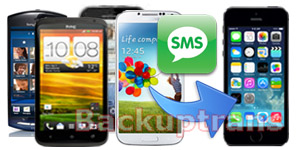
Move SMS Text Messages from Android to iPhone 5S

Switch from Android to iPhone 5S and now want to move SMS Text Messages from Android to iPhone 5S?  Backuptrans Android SMS to iPhone Transfer provides a good solution to transfer SMS Messages from Android to iPhone directly on computer. Just connect your Android and iPhone 5S to computer via USB and then click "Transfer" button. all your Android SMS Messages will be transferred and merged perfectly on iPhone 5S. The follow tutorial shows you how to Transfer SMS Text Messages from Android to iPhone 5S step by step:


Step 1: Run Backuptrans Android SMS to iPhone Transfer and connect both your Android and iPhone 5S to computer with USB cable. Then the software will show them in the Devices list.

Step 2: Click the Android in Devices list.Turn to top toolbar and press "Transfer Android SMS to iPhone" button or go File -> Transfer Android SMS to iPhone.
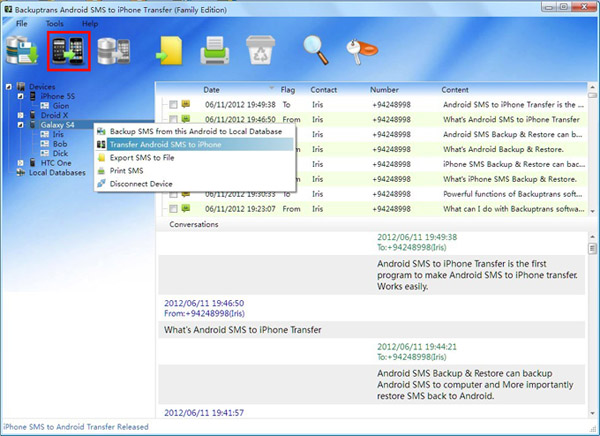


Step 3: Select iPhone 5S to save messages. Click "Confirm" to continue.

Step 4: Waiting for iPhone to restart and refresh messages itself
You will see all your SMS messages saved on your iPhone 5S after restarting it.

Done!

Free download Backuptrans Android SMS to iPhone Transfer on your computer to try.

If you are using Mac, please download Backuptrans Android SMS to iPhone Transfer for Mac instead.


Related:
How to Transfer Contacts from Android to iPhone 5S?
How to Transfer SMS from iPhone 5/4S/4/3GS to iPhone 5S?
How to Recover and Restore Data From iTunes Backup to iPhone 5S?


Best luck!


Sunday, September 8, 2013

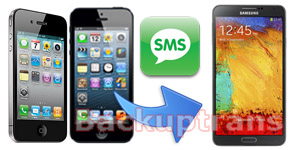
Transfer SMS Text Messages from iPhone to Galaxy Note 3 With Ease

Want to transfer SMS Text Messages from iPhone to Samsung Galaxy Note 3?Backuptrans iPhone SMS + MMS to Android Transfer is the amazing program to help you copy and transfer iPhone Text Messages to Galaxy Note 3 in only a few clicks.

Backuptrans iPhone SMS + MMS to Android Transfer is designed to copy iPhone SMS MMS to Android phone directly from computer. Connect both your iPhone and Galaxy Note 3 to computer via USB, and you will get it done in a few seconds.  All SMS and MMS messages will be merged perfectly on Galaxy Note 3.


The following article will show you how to transfer SMS MMS from iPhone to Galaxy Note 3 step by step:

Step 1: Run Backuptrans iPhone SMS + MMS to Android Transfer and connect both your Galaxy Note 3 and iPhone to computer with USB cable. Then the software will find devices connected and automatically show them in the Devices list.

Step 2: Click the iPhone in Devices list. Turn to top toolbar and press "Transfer iPhone SMS + MMS to Android" button or go File -> Transfer iPhone SMS + MMS to Android.

Step 3: Select target Android (Galaxy Note 3) to save messages. Click Confirm to continue.


Transferred successfully. All iPhone SMS Messages have been transferred and merged on your Galaxy Note 3.

Free download Backuptrans iPhone SMS + MMS to Android Transfer to try.

If you are using Mac, please use Backuptrans iPhone SMS + MMS to Android Transfer for Mac.


Related:

How to Transfer Contacts from iPhone to Galaxy Note 3?
How to Transfer SMS MMS to Galaxy Note 3 from an Android Phone Directly?

Best luck!